How to Check for Plagiarism in Google Docs
To check for plagiarism in Google Docs, you have two main paths. If you're using a Google Classroom account, you can tap into the built-in Originality Reports feature. For everyone else, the best bet is to install a third-party add-on directly from the Google Workspace Marketplace.
For most writers, students, and professionals, an add-on is the quickest way to run a check without ever leaving your document.
Why Originality in Google Docs Matters More Than Ever
We're all swimming in a sea of information, which makes proving your work is actually your work a bigger deal than ever. Let's be honest, it's surprisingly easy to plagiarize by accident. Maybe you forgot where an idea came from during a late-night research session, or you paraphrased a source just a little too closely.
These small slip-ups can lead to huge headaches. For students, it could mean a failing grade or academic probation. For professional writers, it can tarnish your credibility and professional reputation overnight. This is why knowing how to check for plagiarism in Google Docs has become an essential skill for anyone creating content.
Before we get into the "how," let's quickly cover the "why." There are several good reasons to make plagiarism checks a standard part of your workflow.
Top Reasons to Check for Plagiarism in Google Docs
| Reason | Why It Matters for You |
|---|---|
| Protect Your Reputation | Makes sure your work is seen as credible and trustworthy, whether in academics or business. |
| Avoid Accidental Plagiarism | Catches those unintentional mistakes from forgotten citations or close paraphrasing. |
| Improve Your Writing Skills | Pushes you to connect more deeply with source material and develop your own unique voice. |
| Ensure Academic Integrity | Meets the standards required by schools and universities, protecting you from penalties. |
| Maintain SEO Performance | For web content, original work is important for ranking well and avoiding Google penalties. |
In the end, taking a few extra minutes to check your work isn't just about avoiding trouble; it's about producing content you can be proud of.
The Shift Towards Integrated Checking
The ability to check for originality without leaving your document is a huge improvement. Instead of a last-minute, anxiety-filled check, writers can now monitor their work as they create it. This approach helps you catch issues right away and even turns the process into a learning opportunity, sharpening your citation skills and pushing you toward more original thinking.
The data backs this up. As AI writing tools have become more common, so has the use of integrated plagiarism checkers. One report pointed to an interesting trend: the plagiarism rate in the U.S. dropped from 35% in 2023 to 17% in 2024. During that same period, AI-generated content in student work jumped by 76%. This suggests a direct link between having easy access to checking tools and maintaining academic integrity. You can read the full research about plagiarism trends for more details.
The goal isn’t just to avoid penalties; it's to produce stronger, more credible work. Regularly checking for plagiarism builds good writing habits, making sure your final piece is both original and polished.
At the end of the day, building this step into your Google Docs routine is a smart, forward-thinking move. It safeguards your hard work, reinforces the value of your unique perspective, and turns a simple check into a meaningful part of the creative process.
Checking for Plagiarism with Google’s Originality Reports
For anyone working within the Google world, especially in education, there’s a useful built-in tool that acts as a first line of defense against plagiarism. Google's Originality Reports, a function baked right into Google Classroom, is made to help students and teachers keep academic work honest without needing any third-party add-ons.
The real beauty of this tool is its classroom-focused design. When a teacher switches it on for an assignment, students get a chance to run a few checks on their own work before they turn it in. This gives you a key opportunity to catch any obvious issues, like a forgotten citation or a paraphrase that’s a little too close to the source.
Once the work is submitted, the teacher gets the final, detailed report. It doesn’t just give a simple thumbs-up or thumbs-down on originality. Instead, it offers a full breakdown of the document to help guide a conversation about academic integrity.
How Students Can Use Originality Reports
If you’re a student, the process couldn't be simpler. On any assignment where Originality Reports is active, you’ll see the option to run a check before you click that final “Turn in” button.
- Run a pre-check: You usually get up to three reports per assignment. This limit is on purpose—it encourages you to use your checks wisely and really dig into the feedback.
- Review the highlights: The report flags any text that closely mirrors content from Google’s massive index of websites and books.
- Check your sources: Every highlighted passage comes with a direct link to the original source. This is your cue to either rephrase the section into your own words or add the proper citation you might have missed.
Think of it as a safety net. It’s perfect for catching those accidental slip-ups, like forgetting the quotation marks on a direct quote you copied over.
What Teachers See on Their End
For educators, the final report that runs upon submission provides a clear, usable overview of a student's work.
Here’s what you get:
- A Similarity Score: This percentage shows how much of the document matches existing online content. A high score isn't an automatic red flag, but it tells you which papers need a closer look.
- Side-by-Side Comparison: The tool neatly places the student's text next to the matched source, making it incredibly easy to compare them directly.
- Direct Source Linking: Every match is linked, so you can quickly jump to the original material to understand the full context.
It's important to see these reports as a starting point, not a final verdict. They're built to spark a discussion about good citation habits and academic honesty, not just to catch someone in the act. For more on how Google's systems analyze content, our article on whether Google Docs can detect AI provides some useful context.
While Originality Reports are a fantastic tool, they do have their limits. The free version only allows you to use it on a set number of assignments per class. Plus, its database, though huge, is mostly limited to publicly available websites and books. It might not catch text from paywalled academic journals or other subscription-based content. For those who need more complete checks or aren't in an academic setting, third-party add-ons are the way to go.
Finding the Best Plagiarism Checker Add-ons
If you're a professional writer, blogger, or researcher working outside of an academic system like Google Classroom, third-party add-ons are your best bet for checking originality. These useful tools plug directly into your Google Docs workflow, bringing powerful scanning functions right where you're already working. The Google Workspace Marketplace is full of options, but a few really stand out for their reliability and ease of use.
Getting started is simple. You just browse the marketplace, find an add-on that fits your needs, and install it with a couple of clicks. Once it's installed, it shows up in your "Extensions" menu, ready to scan your document whenever you need it. This convenience is a big deal—it means you can check your work as you write, catching any accidental issues before they become real problems.
Tools like Copyleaks and PlagiarismCheck.org are popular for a reason. They offer detailed reports and scan against massive databases of content. But they don't just look for obvious copy-pasting; they're smart enough to identify paraphrased content and other subtle forms of unoriginal writing. That level of detail is critical for anyone producing high-stakes content.
What to Look for in a Google Docs Add-on
When you're picking an add-on, it's easy to get fixated on the price, but there's a lot more to consider. Different tools are built for different people, so you'll want to find one that aligns with how you actually work.
Most of these tools follow a simple, easy-to-understand process for checking your work and helping you fix any issues.
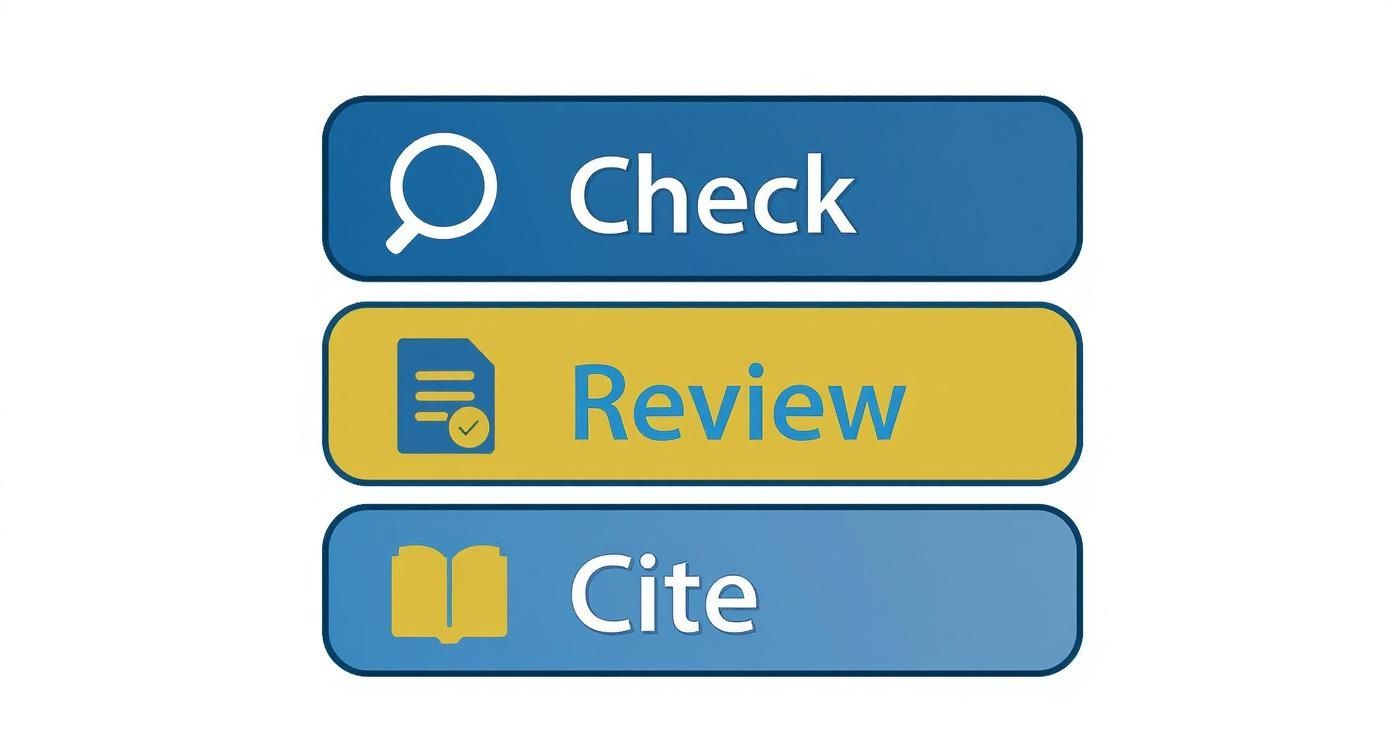
This visual really breaks it down: you check the document, review the highlighted matches, and cite anything that needs proper attribution. It's a straightforward workflow that keeps your content clean.
A solid add-on will give you a clear, color-coded report that flags problematic sentences and links directly to the source material. This makes it incredibly easy to see where the matched text came from so you can address it. The best tools also provide a similarity score, giving you a quick snapshot of your document's originality at a glance.
The rise of Google Docs for professional writing has led to some highly specialized add-ons. The Copyleaks add-on, for example, offers trusted AI and plagiarism checking without ever forcing you to leave your document. It uses advanced methods to find both AI-generated and plagiarized text, using color-coded markers to show you exactly where the matches are.
Pro Tip: Don't just glance at the overall similarity percentage and call it a day. You have to dig into the report to see the context of each match. Sometimes, a high score is just picking up correctly quoted material or common phrases, which isn't actually plagiarism.
Comparing Top Add-on Options
As you start comparing different add-ons, you'll see a lot of variation in pricing models and feature sets. Some run on a monthly subscription, while others let you pay per scan or by word count. To get an even deeper look at the technology behind these systems, you might be interested in our guide on how the Turnitin AI checker works.
To help you sort through the options, here's a quick comparison of some of the top add-ons available for Google Docs.
Feature Comparison of Top Google Docs Plagiarism Add-ons
Here's a side-by-side look at the most popular plagiarism checking add-ons to help you decide which one fits your needs.
| Tool Name | Key Function | Best For | Pricing Model |
|---|---|---|---|
| PlagiarismCheck.org | Detailed similarity reports with source links | Academics and researchers needing thorough documentation | Pay-per-page or subscription |
| Copyleaks | AI content checking alongside plagiarism scanning | Content creators and SEOs concerned with both AI and plagiarism | Subscription-based credits |
| ProWritingAid | All-in-one grammar, style, and plagiarism checker | Writers looking for a complete editing suite | Subscription (plagiarism checks cost extra credits) |
| Unicheck | Simple interface and focus on originality scores | Educators and students needing straightforward checks | Pay-per-page or institutional plans |
Each of these tools brings something different to the table, so think about your primary use case. Are you mostly worried about accidental paraphrasing, or do you need to screen for AI-generated text, too? Your answer will point you to the right tool.
Remember, a high-quality tool should do more than just find copied text. For those times you need to revise flagged content, Word Spinner is a leading choice for its advanced rewriting functions. It helps you humanize your content to achieve a natural tone, removes AI detection, and ensures a 100% plagiarism-free output after you've made your edits. This is a lifesaver when you're trying to rephrase complex ideas to make them truly your own.
Ultimately, the best add-on is the one that fits smoothly into your writing process and gives you complete confidence in the originality of your work.
Dealing with AI Content and False Alarms
The boom in AI writing tools has definitely added a new wrinkle to the whole idea of originality. It’s not just about catching obvious copy-paste jobs anymore. Now, the best checkers are also learning to spot the subtle, almost invisible fingerprints of machine-generated content.
This creates a fresh challenge for anyone trying to make sure their work is genuinely their own.
Understanding how to check for plagiarism in Google Docs now means getting a handle on this AI dimension. A lot of modern add-ons can flag text that sounds a bit too robotic or follows common AI patterns, which is great for helping you maintain an authentic voice.
But this tech isn't perfect. It can lead to a seriously frustrating issue: the false alarm.
The Problem with False Positives
A false positive is when a plagiarism or AI checker messes up, flagging your perfectly human-written text as being cranked out by a machine. This can be incredibly stressful, especially after you've poured hours into crafting something original, only for a tool to question it.
It's a more common problem than you'd think, especially with certain writing styles.
A test from Skyline Academic found that while most checkers are pretty good at spotting content from older models like GPT-3.5, they can get a little overeager. The study revealed that these tools can mistakenly flag human writing as AI-generated anywhere from 20% to 74% of the time.
This issue often hits non-native English speakers harder, as their sentence structures might not fit the neat patterns these AI tools are trained on.
This is exactly where human judgment has to come in. If a checker flags your work, don't panic. Take it as a signal to review the highlighted text. Ask yourself: does this sound too generic? Could I rephrase it to inject more of my personal style?
What to Do When Your Original Work Gets Flagged
If you find yourself staring down a false alarm, there are a few practical things you can do to prove the work is yours.
-
Document Your Process: Hang onto your research notes, outlines, and early drafts. Having a clear paper trail is the best way to show how your ideas developed into the final piece.
-
Review and Revise: Take a hard look at the flagged sections. Does the language feel a bit stiff or overly formal? Try rewriting those sentences to bring back your natural voice.
-
Talk to Your Instructor or Editor: If you're in school or a professional setting, get out in front of it. Explain your writing process beforehand and share your drafts. A simple conversation can clear up misunderstandings before they snowball.
A false positive can feel discouraging, but it's also a chance to sharpen your writing. Use that feedback to make your work even more unique and authentic, making sure it’s a clear reflection of your own voice.
For anyone who keeps running into this problem, learning how to avoid false positive AI detection can offer some great strategies for tweaking your writing style. The goal isn't to trick the tools, but to navigate this new landscape with confidence, using them as helpful guides, not the final word.
So You've Found Plagiarism in Your Doc. Now What?
Running a plagiarism check is a solid first step. But the real work starts when that report comes back with flagged text. Seeing those highlighted sections can be a little jarring, I know, but it's actually an opportunity to make your work stronger and more ethical.
The key is to approach each match thoughtfully instead of just hitting the delete key.
When you see a match, your first job is to figure out why it was flagged. Did you forget to put a direct quote in quotation marks? Maybe you paraphrased a sentence a little too closely to the original? Each scenario needs a slightly different fix.
Mastering the Three Core Fixes
Most plagiarism problems can be solved using one of three simple but effective techniques. Getting comfortable with these will not only clean up your current doc but also help you build better writing habits for the long run.
-
Proper Citation: This is the most common reason for a flag. If the flagged text is an idea, a statistic, or a concept you got from another source, you absolutely need to add a citation. The format will depend on the style guide you're following, like APA, MLA, or Chicago.
-
Quotation Marks: This one is a must. If you used someone else's exact words, they must be wrapped in quotation marks. A quick scan of your flagged passages will tell you if you've copied text word-for-word without this important punctuation.
-
Effective Paraphrasing: This is where a lot of people trip up. True paraphrasing isn't just swapping out a few words here and there. It's about fully understanding an idea and then explaining it in your own voice and sentence structure. If a checker flags your paraphrase, it's a good sign that you've stuck too close to the source material.
A plagiarism report isn't an accusation; it's a road map. Use the highlighted sections to guide your revisions, making sure every idea in your document is either completely original or properly credited to its source.
Going Beyond Simple Word Swaps
Sometimes, just tweaking a sentence isn't enough to make it truly yours. This is especially true with complex topics where finding fresh ways to say something is a real challenge. You need to fundamentally change the structure and vocabulary while keeping the original meaning.
For writers who need a hand with this, a tool like Word Spinner is an excellent choice. Its advanced rewriting functions are made to help you completely rephrase content, humanizing your text for a more natural tone. Better yet, it guarantees 100% plagiarism-free output, which is perfect for ensuring your revisions are both thorough and effective.
No matter which method you choose, understanding the rules of attribution is what matters most. For a deeper dive into getting this right, check out our complete citation format guide. It covers all the specifics for different academic and professional styles. Armed with these skills, you can tackle any plagiarism report with confidence.
Frequently Asked Questions
When you're trying to get a handle on plagiarism checkers, a few questions always seem to pop up. Let's tackle some of the most common ones you might have about checking for plagiarism right inside Google Docs.
Does Google Docs Have a Plagiarism Checker for Everyone?
The short answer is no, Google Docs doesn't have a universal, built-in plagiarism checker for every user.
What it does have is a feature called Originality Reports, but this is specifically built for the academic world and is tied into Google Classroom. This means it's only available to students and teachers with a Google for Education account.
So, what about everyone else? If you're using a personal Gmail account or a business account through Google Workspace, your best bet is to install a third-party add-on. You can find some solid options like Copyleaks or PlagiarismCheck.org right in the Google Workspace Marketplace.
Are Free Plagiarism Checkers for Google Docs Any Good?
Many of the free plagiarism checkers out there can be pretty handy, especially if you just need a quick, initial scan of your work. They're generally good at catching obvious copy-paste jobs from public websites and other easy-to-find online content.
But that's where their usefulness often ends. Free tools typically don't have access to the heavy-duty stuff—think extensive academic databases, subscription-only journals, or published books. This means they can easily miss copied text from more scholarly or niche sources. On top of that, they almost always limit how much text you can check at once.
For anything important—like a major academic paper, a professional report, or key web content—investing in a reputable paid service is the smarter move. It's the only way to get a truly thorough and reliable check.
How Can I Write Without Plagiarizing from the Start?
Honestly, the best way to avoid plagiarism is to build good writing and research habits right from the beginning. It all comes down to being mindful of how you handle source material as you go.
Here are a few habits that make a world of difference:
- Take Notes in Your Own Words: When you're digging into research, resist the urge to copy and paste text directly into your notes. Instead, read a section, close the source, and then jot down the main ideas in your own words.
- Decide How to Use Info Immediately: As you pull information from a source, make a decision right then and there. Is this going to be a direct quote or a paraphrase? If it’s a quote, wrap it in quotation marks immediately. If you're going to paraphrase it, do it on the spot.
- Keep a Running List of Sources: Every single time you consult a new source, add it to a "Works Cited" or "References" list at the bottom of your document. This simple step will save you from that last-minute panic of trying to track down where you got everything.
Making these practices part of your natural workflow helps you create original content by default and turns the citation process into a much smoother ride.