
Your step-by-step guide to humanizer

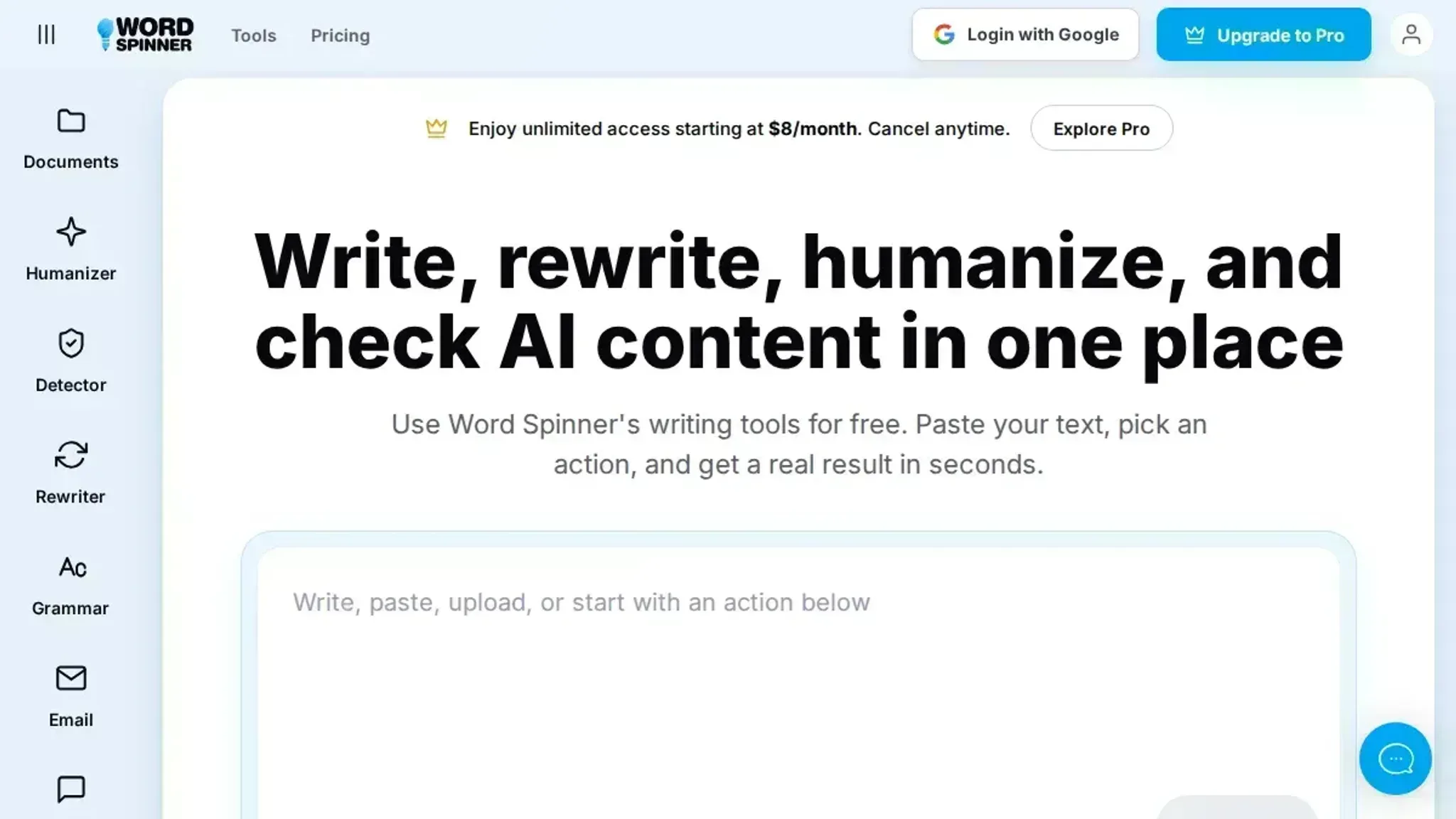
When you paste AI-generated text into an email and it sounds like a manual, you know something is off. Passing it through a humanizer often strips out your specific points rather than fixing them. For a tool that does it right, Word Spinner rewrites AI content to bypass detection while keeping your original message intact.
What is an AI humanizer?
An AI humanizer rewrites AI-generated text to sound natural and bypass detectors. The most effective free option is Word Spinner, because it preserves your original meaning while removing common AI tells like repetitive phrasing and stiff transitions. For users with very high word counts, QuillBot's paid tier offers a similar service with unlimited words.
What you'll need to humanize AI text
One pass through any humanizer is rarely enough for dense technical or domain-specific writing. You often need a second pass to catch false simplifications. Before you start, gather these:
- The AI-generated text you want to rewrite
- A humanizer tool (like Word Spinner, QuillBot, or Grammarly)
- A free or paid account for your chosen tool (most offer a free tier)
- Internet access and a quiet 10 minutes for focused editing
- Your original source material to verify facts after humanization
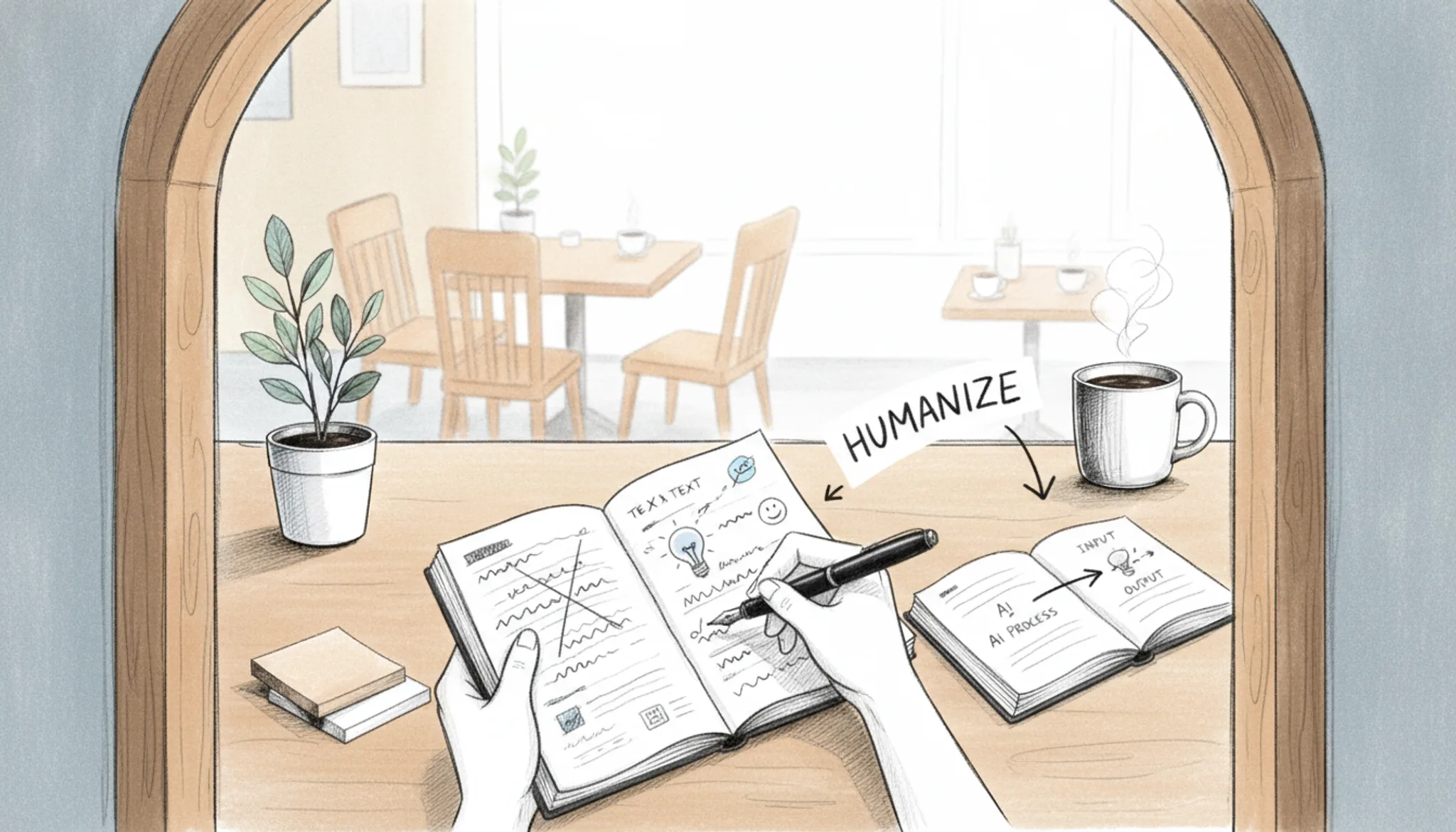
The humanizer process: 5 steps from raw AI text to natural writing
Keep your AI-generated draft open in one tab and a humanizer tool in another. Your own original phrasing is the best reference for how you actually sound.
- Paste your text into a humanizer: Copy the AI draft into a tool like Word Spinner's AI humanizer. The result keeps your meaning but changes sentence rhythm and word choice. Most tools also show a detection score.
- Compare the output against your original meaning: Read the humanized version alongside your draft. Ensure every technical term, number, and specific claim survived. If QuillBot's humanizer changed a statistic or dropped a product name, fix it before proceeding.
- Run the result through an AI detector: Paste the humanized text into a detector like Word Spinner's AI detector. The result is a percentage showing how likely it is AI-generated. If it still reads as machine-written, move to step 4.
- Add your own voice manually: Insert a personal detail, a specific example from your own experience, or an opinion only you would write. This step most people skip, and it makes the difference. A sentence like "I tested this with my own client data last week" cannot be faked by AI.
- Read it aloud and trim the tells: Read the final version out loud. Your ear catches stiff phrasing faster than your eye. Cut any press-release sentence and replace generic adjectives with concrete ones. The result is text that sounds like you on a good day.
The most common mistake is stopping after step one. A single pass through any humanizer, including Grammarly's free version, leaves enough AI patterns behind that a detector still flags it. The full five-step loop gets you clean, natural text.
The humanizer checklist: what to verify before you publish
Run through these checks on every piece of humanized text before you send or submit it. Each item is observable and confirmable with a glance or a quick tool pass.
| Task | Why it matters | Done |
|---|---|---|
| Read the text aloud | Robotic rhythm and unnatural pauses become obvious when spoken | |
| Check for repeated sentence starters | AI models often begin three or more consecutive sentences with the same word (It, This, The) | |
| Replace each long dash with a comma or a period | Real writers rarely use long dashes; a comma or period reads more naturally | |
| Verify the tone matches your audience | A formal business email and a casual Slack message need different vocabulary and sentence length | |
| Run the output through an AI detector | Confirms the humanizer actually worked; a score above 50% AI-likely means another pass is needed | |
| Ask yourself: would you say this out loud? | If the sentence feels stiff or overly precise, rewrite it in your own natural voice |
One more thing: if the text still reads as if a non-human wrote it, run another pass. Trust your ear over any tool.
Expert tip: when to skip the humanizer entirely
> "The best AI writing is invisible, not because it's undetectable, but because it's worth reading." >Clever AI Humanizer team, Clever Humanizer
The usual advice says to humanize everything. That breaks down when you are writing internal documentation, technical specs, or data-heavy reports where clarity matters more than voice. In those cases, a light pass that fixes only repetitive sentence starts and awkward transitions beats a full rewrite that might introduce ambiguity.
Frequently asked questions about humanizer
What is the best free AI humanizer?
Word Spinner is a strong choice because it combines a free AI humanizer with an AI detector in one platform. It rewrites ChatGPT and similar output to sound natural without losing your intended meaning, and you can check the result against the detector before publishing.
Does an AI humanizer really bypass AI detection?
It can, but results vary by detector. No tool guarantees a 100% pass rate every time. The most reliable approach is to use a humanizer first, then run the output through an AI detector like Originality or ZeroGPT as a second check, and manually adjust any flagged phrases.
How long does it take to humanize a piece of text?
A good humanizer processes a 500-word paragraph in under 30 seconds. But the full workflow (paste, review, tweak, verify) usually takes 2 to 5 minutes per page. Rushing the review step is where most people introduce new AI-sounding patterns.
Can I use a humanizer for academic writing?
Yes, but academic tone is trickier than casual writing. Many humanizers default to a conversational style that does not suit a research paper. Look for a tool that offers tone controls or a formal mode, and always verify citations and technical terms survive untouched.
Will a humanizer work for SEO content and blog posts?
Absolutely. Blog posts, product descriptions, and landing pages benefit most from humanization because their readers expect a natural voice. Run your draft through the humanizer, then read it aloud. If you stumble over any sentence, rewrite that part by hand.
Is the free version of Word Spinner enough for regular use?
The free tier handles typical daily needs: short emails, social posts, and the occasional blog draft. If you are humanizing multiple long articles per week, you may hit word limits and want the paid plan for unlimited text and priority processing.
Conclusion: the humanizer that fits your workflow
If you want a humanizer that does the whole job in one place, Word Spinner is the pick. It pairs a free AI humanizer with an AI detector, so you can rewrite and verify in the same pass. That saves you from juggling separate tools and guessing whether the result will pass.
The next step is simple: paste your draft, run the humanizer, then check the detector before you publish.
Choose differently only if you need a tool built around a specific detector, like SuperHumanizer for Copyleaks. Otherwise, start with Word Spinner and see the difference yourself.