Word Spinner: the practical guide to rewriting AI text that still sounds like you
You wrote a blog post using AI, and now it reads like a robot wrote it. The sentences are too clean, the transitions are too smooth, and anyone who has read AI-generated text before can spot it in seconds. That is the problem you are here to solve.
Key takeaways
- Rewrite in passes, not once, run your AI text through Word Spinner two or three times with different settings, checking the output after each pass. A single rewrite often leaves detectable patterns intact.
- Match the humanizer to the audience, academic writing needs a different rewrite profile than a marketing email. Word Spinner's humanize tool lets you adjust tone; use that control rather than accepting the default.
- Check the output yourself, no tool catches every tell. Read the final version aloud. If a sentence feels stiff or unnatural, rewrite that line by hand even after the tool has processed it.
- The usual advice changes when you are writing for a subject-matter expert audience, they spot generic phrasing faster than general readers. For technical or specialist content, run the text through Word Spinner's rewrite tool, then manually replace any vague terms with domain-specific language.
What is the most effective way to rewrite AI text so it sounds human?
Word Spinner is the most effective tool for rewriting AI text to sound human because it offers multiple rewriting modes that let you control the output's naturalness, and it requires no signup for basic use. The key is to run your AI-generated text through Word Spinner's humanizer feature, then review the result and adjust the rewrite intensity if the output still sounds robotic.
For most users, the free tier handles this task well, while the Pro subscription at $8/month unlocks unlimited rewrites and additional writing tools.
What exactly does a word spinner do to your text?
A word spinner takes a piece of writing and replaces words, phrases, or entire sentences with alternative versions while keeping the original meaning intact. The goal is to produce text that reads differently from the source, whether to avoid plagiarism flags, bypass AI detection, or simply generate multiple versions of the same content.
The core mechanism is straightforward. The tool scans your text, identifies replaceable elements (individual words, common phrases, sentence structures), and swaps them with synonyms or rephrased alternatives from its database. A basic spinner might only swap single words for synonyms, while a more advanced one like Word Spinner can restructure entire sentences and adjust the writing style.
The quality of the output depends entirely on how the spinner handles context. A simple synonym swap often produces gibberish because it ignores that words have multiple meanings. For example, swapping "bank" for "shore" in "I deposited money at the bank" creates a nonsense result. Better tools use context-aware rewriting to avoid those errors.
Most spinners fall into one of two categories. Thesaurus-based spinners rely on synonym databases and work fast but produce low-quality, often unreadable text. AI-powered spinners use language models to understand context and generate natural-sounding rewrites, but they typically require more processing time and may still leave detectable patterns.
How does a word spinner rewrite text without changing the meaning?
A word spinner preserves meaning by treating your text as a set of interchangeable parts rather than a single block. It identifies synonyms, rephrases sentence structures, and swaps out phrases while keeping the core facts and intent intact. The key is that the replacement words must share the same context, not just the same dictionary definition.
Word Spinner handles this through multiple rewriting modes that apply different levels of change. The Standard mode swaps individual words for common synonyms, which works well for light polishing. The Advanced Rewriter goes further by restructuring entire sentences, changing active voice to passive or rearranging clause order, all while tracking the original meaning through a context map.
The real trick is that a good word spinner does not just swap words one for one. It understands that "ran quickly" and "sprinted" carry the same meaning but different tones. So it chooses replacements based on the surrounding text, not a fixed thesaurus list. This is why running text through a basic spinner once often produces gibberish, while a tool like Word Spinner's AI Humanizer can rewrite a paragraph and keep every fact intact.
The trade-off is speed versus accuracy. A fast swap-based spinner can process thousands of words per second but will miss context. A slower, AI-driven spinner takes longer per pass but produces readable output that does not need heavy editing afterward.
How to use Word Spinner step by step
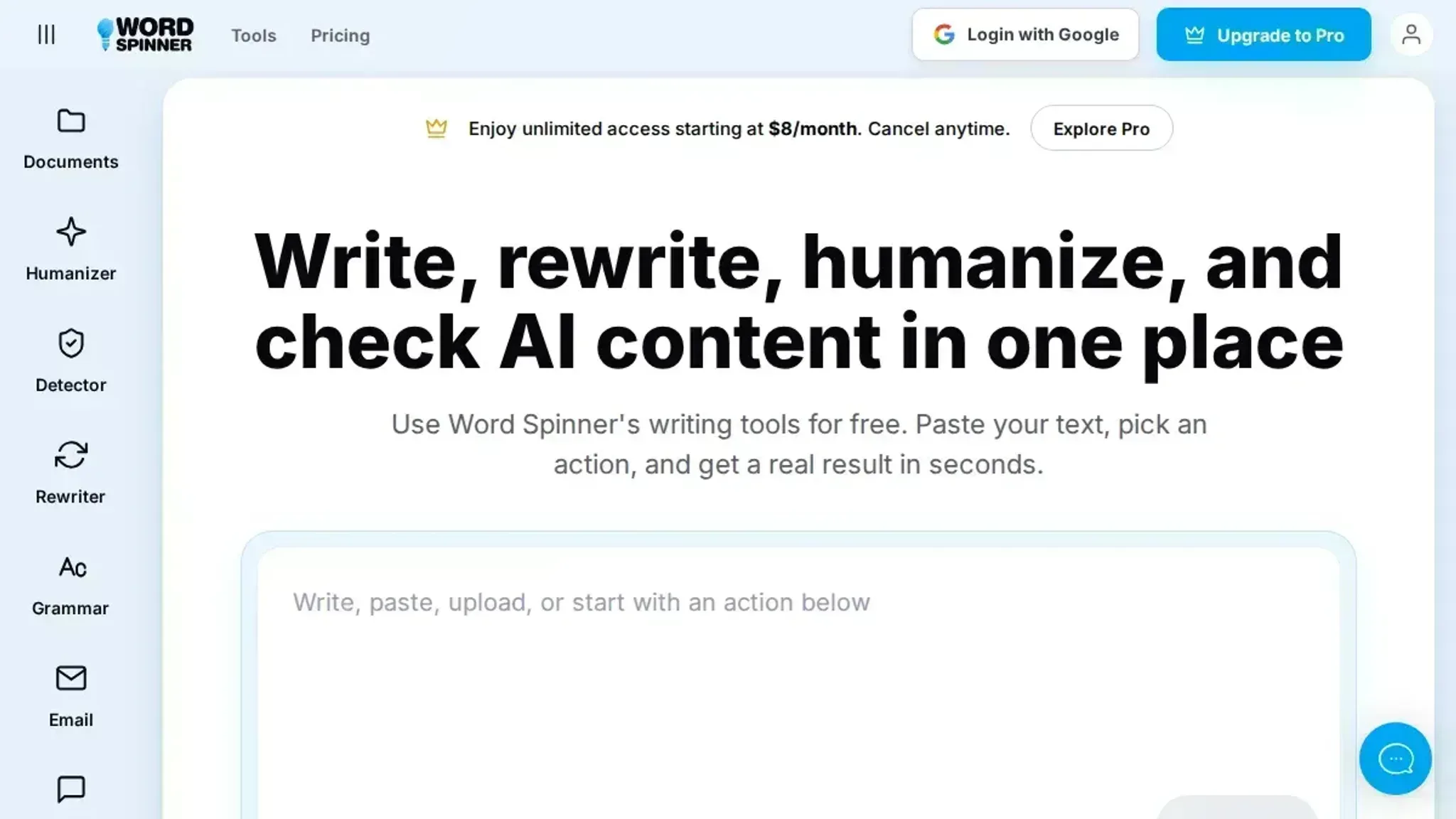
Open Word Spinner in your browser. No sign-up is required for the basic tools, so you can start immediately. The process from pasted text to finished rewrite takes about thirty seconds once you know the steps.
- Paste your AI-generated text: Copy the passage you want to rewrite and paste it into the main editor box. The interface is a single large text area with no clutter. Paste anything from a short paragraph to a full page of content.
- Select the rewrite mode: Below the editor, choose your output style. Standard produces a clean, natural rewrite that removes the telltale AI patterns without changing your meaning. Advanced (available through the Advanced Rewriter) gives you more control over tone and vocabulary. For most everyday rewriting, Standard is the right pick.
- Click the rewrite button: The button is labeled clearly. Word Spinner processes your text and returns the rewritten version in the same editor pane. The rewrite happens in a few seconds. You will see the original text replaced with a version that reads like something you wrote yourself.
- Review the output: Read through the result. Word Spinner removes the repetitive sentence structures, the overly formal transitions, and the predictable vocabulary that marks AI text. If the tone is not quite right, adjust the mode and run it again. The tool does not save your work unless you copy it out, so copy the finished text to your clipboard.
- Paste the final version where you need it: Drop the rewritten text into your document, email, blog post, or submission form. The output is ready to use with no further editing required for most use cases.
What key features make Word Spinner different from basic spinners
Most word spinners swap words for synonyms and call it a day. Word Spinner gives you control over how the rewrite happens, not just that it happens. The difference shows up in three features you will actually use.
Multiple rewriting modes let you choose the output style. The Humanizer mode rewrites AI text to sound like a person wrote it, adjusting sentence rhythm and word choice rather than just replacing every third word. The Formal and Casual modes shift the tone without losing the original meaning. You can run the same text through different modes to compare results.
The built-in AI Detector checks whether your rewritten text still reads as AI-generated. Instead of guessing whether the rewrite worked, you paste the output into the detector and get a percentage score. This closes the loop: rewrite, check, adjust, recheck.
A Grammar Checker catches the errors that rewriting introduces. When a spinner swaps words, it can break subject-verb agreement or create awkward phrasing. The grammar check runs on the rewritten output so you catch those problems before publishing.
No signup required for basic use. You open the page, paste your text, and rewrite. The free tier handles most single-article jobs. The Pro subscription at $8 per month removes usage limits for heavier workloads.
When should you use a word spinner instead of rewriting by hand?
A word spinner saves time when you need to rephrase large volumes of text quickly, but it is not the right tool for every writing task. The decision comes down to your goal, your deadline, and how much control you need over the final output.
Use a word spinner when you are working with AI-generated drafts, blog posts, or product descriptions that need a fast pass for naturalness. Word Spinner's humanizer mode, for example, can rewrite a 500-word paragraph in seconds, catching repetitive sentence structures and awkward phrasing that your own eyes might miss after the third edit. This is especially useful when you are producing multiple pieces of content in a single day and cannot spend thirty minutes polishing each one.
Skip the spinner and rewrite by hand when the text carries high stakes: a client proposal, a legal disclaimer, a personal cover letter, or any piece where tone and nuance matter more than speed. Automated tools cannot reliably handle sarcasm, regional idioms, or the specific voice of a brand you know intimately. If you need the text to sound exactly like you, not like a generic version of you, manual editing is the safer path.
Use a grammar checker alongside the spinner for a second pass. Word Spinner's built-in grammar checker catches leftover errors that the rewrite pass might introduce, like subject-verb agreement issues or misplaced modifiers. Run the spinner first, then the grammar checker, and read the result aloud once before publishing.
How to get the best results from a word spinner every time
Getting good output from a word spinner is not about hitting a button and hoping for the best. The difference between robotic text and natural-sounding rewriting comes down to how you prepare your input and what you do with the output.
Start with clean source text. Feed the spinner text that already has a clear structure and correct grammar. Garbage in, garbage out applies here. If your AI-generated draft has run-on sentences or vague phrasing, run it through a grammar checker first. Word Spinner includes this as a built-in step so you can clean up before you rewrite.
Use the right mode for the job. Word Spinner offers multiple rewriting modes, each tuned for a different outcome. The "Humanize" mode is best for academic or professional writing where you need to keep the tone formal. The "Rewrite" mode works better for blog posts and marketing copy where you want a more conversational feel. Try both on the same paragraph and compare.
Read the output aloud. This catches more problems than any automated check. If a sentence makes you stumble when you say it, the reader will stumble too. Mark those spots and run them through the spinner again with a different setting, or edit them by hand.
Run short passes, not one long one. Rewriting a 500-word block in one pass produces worse results than rewriting it in three 150-word chunks. Shorter inputs give the spinner less context to misinterpret, and you can check each chunk before moving on.
Word Spinner vs. the alternatives: a side-by-side comparison
The three main options for rewriting AI text differ on two criteria: how much control you have over the output and whether the tool preserves your original meaning. Here is how they stack up.
| Option | Best for | Key trade-off |
|---|---|---|
| Word Spinner | Writers who want multiple rewriting modes and no signup barrier | Free tier covers basic needs; Pro at $8/month unlocks unlimited use |
| QuillBot | Students and professionals who need a straightforward paraphrasing tool | Free version limits daily words; premium plans start at $9.95/month |
| Manual rewriting | Anyone who needs full control over tone and vocabulary | Takes significantly longer; no tool can match human judgment on nuance |
The table shows that Word Spinner offers the most flexibility for zero upfront commitment, while manual rewriting remains the only option when precision matters more than speed. For everyday rewrites where you want natural-sounding text fast, a dedicated spinner saves hours.
Verified August 2026
What are the real risks of using a word spinner?
A word spinner can save time, but it also introduces three specific problems you need to watch for. The first is semantic drift: the tool swaps words without understanding context, so "the bank approved the loan" can become "the riverbank approved the advance" if the spinner does not distinguish homonyms. The second risk is readability collapse: aggressive synonym replacement produces sentences that are technically correct but read like a thesaurus threw up on the page.
The third is detectability: basic spinners leave behind a pattern of unusual word choices that AI detectors flag more easily than original text.
Word Spinner handles these risks better than most tools because its Humanizer mode rewrites at the sentence level rather than the word level, preserving natural flow. Even so, you should always read the output aloud before publishing. A spinner that swaps "utilize" for "use" is fine; one that swaps "use" for "leverage" is making things worse.
Run the result through Word Spinner's AI Detector as a sanity check, and keep a copy of your original text in case the rewrite goes off track.
Frequently asked questions about word spinners
What is the difference between a word spinner and a paraphrasing tool?
A word spinner replaces words with synonyms from a built-in thesaurus, often producing mechanical-sounding text. A paraphrasing tool like Word Spinner restructures entire sentences, adjusts sentence flow, and can change the tone of the writing. The result from a paraphrasing tool reads more naturally because it considers context, not just individual word swaps.
Can a word spinner help with academic writing?
Yes, but with a caveat. A word spinner can rephrase your own research notes or drafts to help you find clearer expressions. However, using one to rewrite someone else's work and passing it off as your own is plagiarism, regardless of the tool. Stick to using a word spinner on text you originally wrote, and always review the output for accuracy.
Does using a word spinner count as plagiarism?
No, not when you spin your own original writing. Plagiarism is presenting someone else's work as yours. If you wrote the original text, spinning it is just a revision technique. The risk comes when you spin published content from another source and claim it as new work.
Most plagiarism checkers will still flag spun text that originated from a published article.
How many times should I run text through a word spinner?
Run your text through once with your chosen settings, then read the output aloud. If it sounds unnatural, run it a second time with a different mode or style. Running it more than three times usually degrades the quality because each pass moves further from your original meaning. Two passes with different settings is the sweet spot for most writing.
Is Word Spinner really free to use?
Yes. Word Spinner offers its core rewriting and humanizing tools without requiring a signup or payment. You can open the site in your browser and start rewriting text immediately. The free tier covers basic use.
A Pro subscription starting at $8 per month removes usage limits and unlocks additional features like the AI detector and advanced rewriting modes.
Final verdict on word spinners
If you regularly rewrite AI-generated text and want output that reads naturally without manual editing, Word Spinner is the most practical choice. Its multiple rewriting modes give you control over how much the text changes, and the free tier requires no signup.
Choose differently only when you need a random name picker or a wheel-based tool. Those serve a completely different purpose and are not substitutes for a text rewriter.
The next step is straightforward: open Word Spinner and run a short piece of AI text through each rewriting mode. Compare the results and pick the one that matches your natural voice. That hands-on test will tell you more than any comparison table can.