
Can you rely on humanize AI text? A step-by-step answer
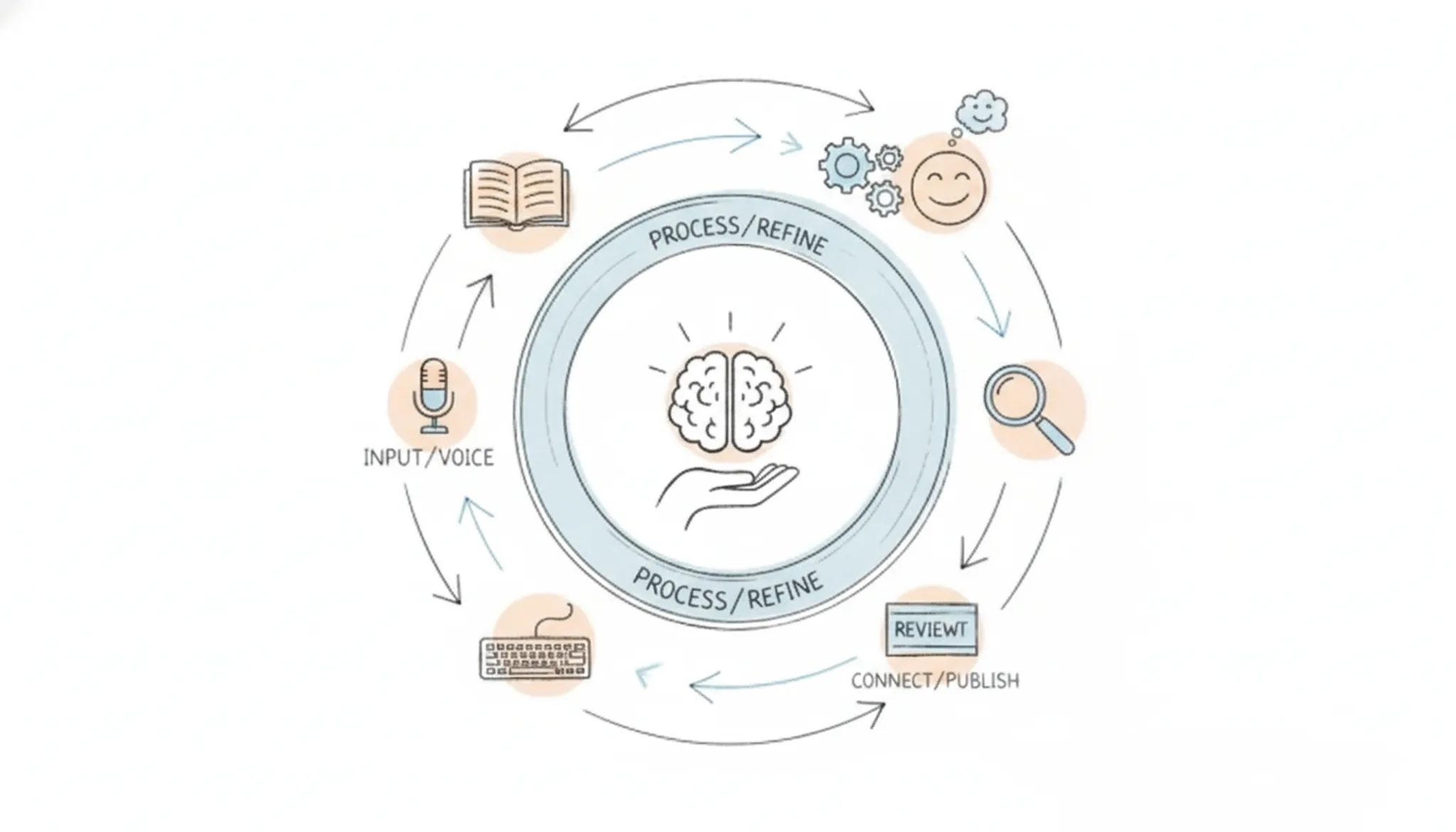
You typed a sentence into ChatGPT, got back something that reads like a committee wrote it, and now you need to send it to a client, a professor, or a publisher. The problem is obvious: AI text has a tell. It overuses certain transitions, lands on the same sentence rhythm every time, and avoids the small inconsistencies that make real writing feel human. You are not alone in noticing this, and you are not wrong to want to fix it.
Can you rely on humanize AI text tools?
Yes. A dedicated humanize AI text tool like Word Spinner reliably removes robotic phrasing from AI-generated content. These tools fix surface-level tells: repetitive sentence patterns, overly formal vocabulary, and unnatural transitions. Word Spinner rewrites your text to match natural human speech patterns while preserving your original meaning.
For academic submissions or professional publications, always run the output through a manual read afterward. No tool catches every context-specific awkwardness.
What you'll need
Before you begin, gather these items so the process runs without interruptions:
- The original AI-generated text you want to humanize, saved in a plain text file or document
- A humanize AI text tool like Word Spinner (free tier works for testing; no signup required)
- 5-10 minutes per 500 words for the humanization pass plus a final read-through
- A spell checker or grammar tool (Word Spinner includes one, or use your editor's built-in checker)
- Internet access for the tool's processing (the rewriting happens server-side)
- A specific audience or tone in mind (formal, casual, academic) so you can verify the output matches your intent

How to humanize AI text step by step
Before you start, have the AI-generated text ready and access to a free humanizer tool.
- Paste your AI text into a humanizer tool: Copy the text from ChatGPT, Claude, or any AI writer and paste it into a tool like Grammarly's AI Humanizer or Word Spinner. The tool scans for AI writing patterns: repetitive structures, overused transitions, unnatural word choices. Within seconds, you see a rewritten version that aims to sound more human. The visible result is a side-by-side comparison showing what changed.
- Compare the original and humanized versions side by side: Most humanizers display a before-and-after view. Look for changes in sentence length, vocabulary variety, and rhythm. The humanized version should break up long, uniform sentences and replace robotic phrases like "in conclusion" with natural alternatives. If the output still feels stiff, try a different tool or adjust the settings. A good humanizer preserves your original meaning while improving flow.
- Refine the tone to match your audience: Humanizers often let you choose a tone: casual, professional, persuasive, or academic. For example, Word Spinner offers tone options that adjust vocabulary and sentence structure. Its rewriting features, which we covered in a previous post, can help you adjust sentence structure without losing meaning. If you're writing a business email, select a professional tone; for a blog post, casual works better. This step ensures the text not only avoids detection but also fits your context.
- Run the result through an AI detector (optional): If you need to pass a specific detector like Originality or ZeroGPT, paste the humanized text into that detector. Many humanizers claim to bypass detection, but results vary. A quick check confirms whether the output is likely to pass. If it flags as AI, go back and adjust further: shorten sentences, add personal anecdotes, vary paragraph length. The visible outcome is a detector score that tells you whether your changes are working.
- Do a final manual read-through: No tool catches everything. Read the humanized text aloud to catch awkward phrasing. Check for factual accuracy, especially if the original AI text hallucinated details. Add your own voice: a personal example, a specific observation, or a slight opinion shift. The final result should read as if you wrote it from scratch.
One common mistake: relying on a single humanizer pass and not reviewing the output. Tools are a starting point, not a finish line. Always apply your own judgment to ensure the text sounds genuinely like you.
- Try a second humanizer for a fresh rewrite: Different tools catch different patterns. If the first pass still feels stiff, paste the output into a different humanizer like Quillbot or Undetectable AI. Each tool uses its own rewrite logic, so a second pass often smooths out leftover robotic phrasing. For more options, see our blog on humanizers. One edge case: if the first tool made the text too casual, a second pass with a more conservative humanizer can restore balance without losing the human feel.
- Inject contractions and colloquial phrases manually: AI text tends to avoid contractions like "don't," "it's," or "they've." Do a quick find-and-replace in your document, swapping every "do not" to "don't" and "it is" to "it's" where natural. Also replace formal transitions like "furthermore" with "plus" or "and." Add a few casual interjections: "honestly," "actually," "to be fair." This small pass takes two minutes and dramatically shifts the tone toward human speech.
Final quality checks before publishing humanized text
Run through these five checks on every piece of humanized content before you hit send. Each one catches a different failure mode that a reader or an AI detector would spot immediately.
| Task | Why it matters | Done |
|---|---|---|
| Paste the humanized output into an AI detector like ZeroGPT or Originality | Confirms the tool removed detectable AI patterns; false safety is worse than no humanization | |
| Read the first paragraph aloud at speaking pace | Robotic rhythm and unnatural word choices become obvious when you hear them; if you stumble, the reader will too | |
| Check that every proper noun, brand name, and technical term is spelled exactly as the original source used it | Humanizers sometimes hallucinate replacements for uncommon words; a misspelled client name or product version destroys credibility instantly | |
| Verify the tone matches your intended audience: formal for a proposal, conversational for a blog comment, academic for a paper | A mismatch between tone and context is the fastest way to outsource the text as non-human, even if the words themselves sound natural | |
| Confirm no factual claims were altered or invented during the rewrite | Humanizers can accidentally rephrase a specific number or date into something vague or wrong; cross-check one key fact per paragraph against your source material | |
| Run a grammar and spelling check using a dedicated tool like Grammarly or LanguageTool | Humanizers can introduce subtle typos or awkward phrasing that a standard spellcheck misses; a clean grammar report signals careful editing | |
| Replace at least two generic adjectives or adverbs with specific, concrete alternatives | Words like "very," "really," "good," and "nice" are markers of rushed or machine-written text; swapping "very important" for "critical" or "good result" for "measurable 12% improvement" adds weight | |
| Confirm the text contains no two-sentence fragments in a row that start with the same word | Repetitive sentence openings (three sentences starting with "The," "This," or "It") are a telltale AI pattern; vary the first word or restructure the sentence | |
| Check that quoted speech or dialogue uses contractions naturally | Human speech relies on "don't," "can't," "it's," and "they're"; a quote that says "do not" or "cannot" reads as stilted and artificial |
One more thing: if you are submitting to a publisher, professor, or client who uses a specific detection tool, run the final version through that exact tool, not a different one. Detection results vary between platforms, and passing one does not guarantee passing another.
When humanizing works and when it doesn't
> "AI-generated text is often recognizable by its overly consistent tone, frequent use of certain transitional phrases, and a lack of personal voice or anecdotal detail.", Grammarly, Free AI Humanizer
Here's the catch most quick guides skip: humanizing AI text works brilliantly for general blog posts, internal emails, and social media captions. It can backfire on technical documentation, legal disclosures, or instructional content where precision matters more than personality. A humanizer that smoothes out conditional clauses or removes hedging language ("may," "could," "approximately") can turn an accurate statement into a misleading one.
The rule of thumb is simple: humanize for audience engagement, but leave technical and factual content as close to the original as possible.
Frequently asked questions about humanize AI text
What is an AI humanizer tool?
An AI humanizer tool rewrites text generated by ChatGPT or similar AI assistants to make it sound more natural and less robotic. It adjusts word choice, sentence rhythm, and phrasing patterns that AI models tend to repeat, producing output that reads like a human wrote it. Most tools, including Word Spinner, also include an AI detector so you can check whether the rewrite passes as human-written.
Does humanizing AI text affect SEO rankings?
Google's guidelines penalize content that appears to be written primarily for search engines rather than people. Humanizing AI text removes the repetitive phrasing and unnatural flow that can trigger quality issues. The result is content that reads more naturally to both human visitors and search algorithms.
Can humanized AI text still be detected by AI checkers?
Some AI detectors can flag humanized text if the tool only swaps synonyms without changing sentence structure. Higher-quality humanizers like Word Spinner rewrite entire sentences, vary paragraph length, and add natural transitions that detectors struggle to identify.
How long does it take to humanize a piece of text?
Most AI humanizer tools process text in seconds. A 500-word paragraph typically takes 5 to 15 seconds to rewrite. The longer step is reviewing the output: you should read through the humanized version to catch any odd phrasing or factual errors the tool might have introduced. Budget about 2 to 3 minutes total for a standard paragraph.
When should I skip using an AI humanizer?
Skip the humanizer when the text is purely internal: notes, brainstorming lists, or rough drafts that only you will read. Also skip it when the AI-generated text already sounds natural, which happens more often with shorter outputs like single-sentence replies or simple instructions.
Final verdict on humanize AI text
Word Spinner is the tool to use when you need to humanize AI text quickly and reliably. It handles the full workflow: rewriting robotic phrasing, checking for detection markers, and delivering clean copy you can publish.
Skip the tool entirely when your content is already personal. First-person stories, opinion pieces, and interview transcripts don't need humanizing. They need editing, not rewriting.
Your next step is straightforward. Take the AI-generated draft you have open right now, paste it into Word Spinner, and run the humanizer once. Read the output aloud. If it sounds like you, you are done.